Category Archives: Linux

Dual Monitors on a 2007 ThinkPad T61 – Setup, Freezes, and How I Fixed It

Part 3 of “Reviving a 2007 ThinkPad T61 with MX Linux 25”

By the time I reached this point in the revival, the T61 was no longer embarrassing to use. Brave opened quickly, FeatherPad felt responsive, and the fan stayed quiet during light work. I could almost pretend it was a modern machine, until I tried to dock it and add a second monitor.

I wanted a proper desk setup: the T61 as a compact secondary computer, plugged into a larger external display via VGA. The dream was simple: extended desktop, Brave windows on both screens, maybe one for reading, one for notes. The reality was far messier.

The Initial Setup – Excitement Turned to Frustration

The T61 has a VGA port on the side and supports docking (I had an old ThinkPad dock). I plugged in a 1920×1080 IPS monitor and powered on. MX Linux detected it immediately, the desktop stretched to 3200×1080 total resolution (1280×800 laptop screen + 1920×1080 external). I dragged windows across both, opened Brave on each, and felt like I’d won.

Then the problems started.

Scrolling on either screen lagged. Dragging a window from one display to the other took a noticeable second. Opening a heavy site (news with images, Reddit threads) made the entire desktop stutter. Worst of all: after a few minutes of normal use, the HDD light would come on solid, the mouse froze, Brave would complain about a tab using too many resources, and the system would lock up for 1–3 minutes. I could sometimes recover with Ctrl+Alt+F1 to a text console and kill processes, but often it required a hard power-off.

The root cause was obvious in hindsight: llvmpipe (CPU-based rendering) was being asked to redraw 3.5 million pixels across two screens. The Core 2 Duo and 4 GB RAM simply couldn’t keep up when Brave loaded modern web pages with JavaScript, images, and ads. Every tab refresh pushed more data into memory, eventually hitting swap on the slow 7200 rpm drive — and that’s when the freezes began.

What I Tried That Didn’t Work (The Trial-and-Error Phase)

I spent days chasing false leads.

– I tried lowering resolution on the external monitor to 1680×1050. Slightly better, but freezes still happened.
– I disabled all animations and shadows again (already done), hoping to save redraw cycles. Minor improvement.
– I lowered Brave’s memory limits with flags like `–max_old_space_size=1024`. Helped a little, but not enough.
– I experimented with different refresh rates (external at 60 Hz, laptop at 50 Hz). Reduced CPU load by 10–15%, but didn’t solve the core problem.

The freezes kept coming. Sometimes after 5 minutes, sometimes after 30, always with the HDD light stuck on and the system unresponsive.

The Breakthroughs – What Finally Made Dual Monitors Usable

Three changes, combined, turned the nightmare into something workable.

First: zram to the rescue (again).
I’d already upgraded zram to 2.5 GB zstd in Part 2, but I pushed it further by making sure Brave’s memory footprint stayed low. The launcher flags became non-negotiable:

brave --process-per-site --disk-cache-size=50000000 --max_old_space_size=1536

This reduced the number of renderer processes and capped Brave’s total RAM use. Combined with zram, even 20–25 tabs across both screens stayed in compressed RAM instead of hitting the HDD.

Second: make the external monitor primary and reduce total pixel load when possible
I set the external 1920×1080 as primary (Settings → Display → Primary Display → VGA-1). Most new windows opened there, reducing redraws across the slower VGA link.

I also wrote a tiny toggle script to disable the laptop screen entirely when I didn’t need the extra space:

#!/bin/bash
if xrandr | grep -q "VGA-1 connected"; then
    if xrandr | grep -q "LVDS-1 connected (normal"; then
        xrandr --output LVDS-1 --off --output VGA-1 --mode 1920x1080 --primary
        notify-send "Performance Mode" "Laptop screen OFF – 1920x1080 only"
    else
        xrandr --output LVDS-1 --mode 1280x800 --right-of VGA-1 --output VGA-1 --mode 1920x1080 --primary
        notify-send "Extended Mode" "Both screens active – 3200x1080"
    fi
fi

Saved as `~/toggle-screens.sh`, made executable (`chmod +x`), and added to the panel. One click to drop from 3.5 million pixels to 2 million when I needed maximum responsiveness.

Third: force refresh rates and disable unnecessary redraws
I locked the external monitor to 60 Hz (many VGA connections default to 75 Hz on 1080p) and the internal to 50 Hz (the 1280×800 panel tolerates it without flicker on most T61s):

xrandr --output VGA-1 --mode 1920x1080 --rate 60
xrandr --output LVDS-1 --mode 1280x800 --rate 50

Added to a startup script. This alone cut CPU usage by 15–20% during normal desktop use.

The Results – Dual Monitors, Finally Usable

After these changes:

– 1920×1080 single-screen mode (laptop off): smooth, almost no lag, Brave with 20+ tabs stays responsive.
– 3200×1080 extended mode: still heavier, but usable for light work (email + browser, notes + reference). 15–20 tabs total is comfortable; 30+ starts to push it.
– Freezes: gone. The HDD light rarely stays solid anymore.
– Fan: quiet in single-screen mode, only noticeable in extended mode under load.

It’s not perfect, complex sites on both screens can still stutter, but it’s a functional dual-monitor setup on 2008 hardware. The T61 went from “desk toy” to “second workstation.”

Next in the series: adding Bluetooth 5.3 to a laptop that never had it, and the small tweaks that made it actually work.

If you’ve ever tried dual monitors on old hardware, what tricks did you use to keep it smooth? Share in the comments  as I’m still learning.

Continued in Part 4: Adding Bluetooth 5.3 to a ThinkPad T61 – USB Adapter Success Story
Making a ThinkPad T61 Feel Fast Again in 2026 – Software Tweaks That Actually Matter

Part 2 of “Reviving a 2007 ThinkPad T61 with MX Linux 25”

After the fresh MX-25 install, the T61 was alive, but barely. Opening Brave with three tabs felt sluggish. Scrolling on a modern website stuttered. The fan spun up constantly, even when I was just typing in a text editor. The 7200 rpm hard drive made its presence known every time the system needed to swap. Battery life hovered around two hours. It wasn’t unusable, but it was nowhere near the “daily driver” I hoped for.

I knew the hardware limits were real, no hardware acceleration (llvmpipe), only 4 GB RAM, an ancient GPU, but I also knew software could squeeze a lot more life out of this machine. Over the next few weeks I tried dozens of tweaks, broke things, fixed them, froze the system more times than I can count, and eventually found the combination that made the T61 feel surprisingly snappy again. This post is the honest account of what actually worked (and what didn’t).

The Baseline – How Bad Was It Really?

Before any changes, here’s what daily use looked like:

– Opening Brave and loading a news site: 5–10 seconds lag before scrolling felt smooth.
– Switching tabs with 8–10 open: noticeable stutter, sometimes the HDD light stayed solid for 20–30 seconds.
– Typing in FeatherPad or a terminal: responsive enough, but window resizing and menu animations lagged.
– CPU usage: idle around 5–10%, but any real work pushed it to 80–100% quickly.
– Fan: always audible, ramping up within minutes of light browsing.

The machine wasn’t broken, it just felt every one of its 18 years. The goal wasn’t to make it compete with a 2025 laptop; it was to make it feel pleasant to use again.

First Big Wins – Turning Off the Eye Candy

XFCE on MX-25 comes with compositing enabled by default — fancy window shadows, transparency, animations. On llvmpipe (CPU-rendered graphics), this is a performance killer.

I opened a terminal and ran:

xfconf-query -c xfwm4 -p /general/use_compositing -s false

That one command turned off compositing system-wide. The difference was immediate,  windows moved instantly, menus popped without lag, desktop switching felt smooth. I also disabled shadows and dock effects with a few more xfconf lines:

xfconf-query -c xfwm4 -p /general/show_dock_shadow -s false
xfconf-query -c xfwm4 -p /general/show_frame_shadow -s false
xfconf-query -c xfwm4 -p /general/show_popup_shadow -s false

These changes alone dropped CPU usage noticeably when moving windows or opening dialogs. If you’re on old hardware and haven’t disabled compositing yet, do it today, it’s the single biggest responsiveness gain.

CPU & Power Management – Making the T8100 Punch Above Its Weight

The T8100 is stuck at 2.1 GHz unless the governor lets it boost. I switched to the “powersave” governor (counter-intuitive, but it works best on Penryn chips):

sudo apt install cpufrequtils
echo 'GOVERNOR="powersave"' | sudo tee /etc/default/cpufrequtils
sudo systemctl restart cpufrequtils

Then I installed TLP for aggressive power management:

sudo apt install tlp tlp-rdw
sudo tlp start

I created a custom T61 profile in `/etc/tlp.d/99-t61.conf` with lower max frequency on battery, runtime PM for devices, and HDD spin-down. The fan became much quieter, and idle power draw dropped noticeably. On AC power the CPU still boosts to 2.1 GHz when needed, but the system stays cooler overall.

zram – The Freeze-Killer

The real villain was memory pressure. With 4 GB RAM and llvmpipe, three Brave tabs could push the system into swap, and the 7200 rpm HDD would thrash, freezing the desktop for 1–3 minutes. I upgraded zram from the default 1.9 GB lz4 to 2.5 GB zstd:

sudo swapoff /dev/zram0
sudo zramctl --reset /dev/zram0
echo zstd | sudo tee /sys/block/zram0/comp_algorithm
echo 2560M | sudo tee /sys/block/zram0/disksize
sudo mkswap /dev/zram0
sudo swapon -p 100 /dev/zram0

I made it permanent with `/etc/systemd/zram-generator.conf.d/override.conf`. After this change, even 20+ tabs only compressed into RAM, no more HDD thrashing, no more multi-minute freezes.

Brave Browser – Tweaking the Memory Hog

Brave was one of the biggest CPU and RAM user. I added launcher flags:

brave --process-per-site --disk-cache-size=50000000 --max_old_space_size=1536

This reduced process count (fewer tabs = fewer processes), capped cache and memory footprint, and stopped it from eating all available RAM. Combined with zram, Brave became usable again, 15–20 tabs open without freezing.

Screen Refresh Rate Locks – Reducing CPU Load

The external monitor defaulted to 75 Hz, and the internal 1280×800 to 60 Hz, unnecessary redraws on llvmpipe. I locked both:

xrandr --output VGA-1 --mode 1920x1080 --rate 60
xrandr --output LVDS-1 --mode 1280x800 --rate 50

I made it automatic with a startup script. CPU usage dropped 10–20% during normal desktop use.

The Results – Before & After

After all these tweaks:

– Idle CPU: 3–8% (was 10–20%)
– Opening Brave with 10 tabs: smooth scrolling, no stutter
– Switching windows: instant
– Fan: quiet most of the time, only spins under heavy load
– Battery: 3.5–4 hours (was 2 hours)
– Overall feel: surprisingly snappy for 2008 hardware

It’s still not a 2025 ultrabook, but it became a machine I actually enjoyed using, not just tolerated.

Next up: the dual-monitor saga. Adding a second screen almost killed the revival… until I found the right combination of tweaks.

Have you squeezed extra life out of old hardware with clever software? Share your favorite tweaks in the comments as I’m always looking for more ideas.

Continued in Part 3: Dual Monitors on a 2007 ThinkPad T61 – Setup, Freezes, and How I Fixed It

Reviving a 2007 ThinkPad T61 in 2025: Why I Chose MX Linux 25 & First Impressions

Part 1 of “Reviving a 2007 ThinkPad T61 with MX Linux 25”

About five years ago I picked up this ThinkPad T61 on eBay for $80. It wasn’t meant to be my main machine. It was instead meant to be just a backup, something tough and reliable to sit in a drawer in case my daily driver ever failed. I remember unboxing it, running a quick test, confirming the screen worked, the keyboard still had that classic ThinkPad click, and the battery held a charge. Then I closed the lid, slid it onto a shelf in the office, and… forgot about it. For half a decade it just sat there collecting dust, a quiet relic from 2007 waiting for a reason to be useful again.

Last month I was rummaging through boxes looking for a spare SATA cable to repair another computer when my hand landed on the familiar black brick. The Core 2 Duo sticker was still there, the 4 GB RAM upgrade label from the previous owner still legible. I pulled it out, blew off the dust, and thought: modern Linux has changed a lot since 2020. Could I actually turn this thing into a viable daily machine again in 2025?

The answer turned out to be yes, but not without some surprises, some freezes, and a fair amount of terminal time. This series is the honest story of that revival: the hardware quirks, the boot errors, the performance tweaks that actually made a difference, and the little upgrades that brought a 2007 laptop back to life.

What I Was Really Working With

I started with the simplest diagnostic tool I know: `inxi -Fxxxz`. The output told me everything I needed to know right away.

The CPU is an Intel Core 2 Duo T8100, dual-core, 2.1 GHz base, 3 MB cache, from the Penryn generation (late 2008). The graphics are the integrated Intel Mobile GM965/GL960 chipset, which in 2025 means llvmpipe software rendering, the CPU is doing all the drawing because hardware acceleration for this chip was dropped years ago. There’s 4 GB of RAM (the max the T61 supports), a 320 GB 7200 rpm Western Digital hard drive, and the original Intel PRO/Wireless 3945ABG WiFi card. Battery health was at 81%, not terrible for a 15-year-old pack.

In short: this is a machine that was high-end in 2008, costing around $2000 usd, and now sits somewhere between “vintage curiosity” and “barely usable by 2025 standards.” But it booted MX Linux 25 Infinity (Xfce edition) without complaint, connected to Wi-Fi, and let me open a browser. That was enough to make me want to keep going.

The First Boot Surprises

Right from the live USB, two messages caught my eye during boot and they flash by so fast you almost miss them.

The first was something about the TPM chip failing to communicate. As I found out later, the T61 has an ancient Infineon TPM 1.2 module, and modern kernels try to talk to it at startup. Sometimes the chip doesn’t respond quickly enough, so you get a timeout warning. It’s completely harmless, no impact on security, stability, or anything else, but it’s noisy and annoying. I ended up disabling the TPM in BIOS later (F1 → Config → Security Chip → Disabled) to silence it. Done!

The second was a quick line about VMX being disabled by BIOS. VMX is Intel’s virtualization technology (VT-x), and my T8100 supports it, but it was turned off in the BIOS defaults. Again, harmless unless you plan to run virtual machines, so I left it off.

Both are classic signs you’re running a modern kernel on very old hardware. Nothing to panic over, just little reminders that this isn’t a 2025 ultrabook. Not by a long stretch.

BIOS Tweaks Before Install

I rebooted into BIOS (F1 at the ThinkPad logo or that special ThinkVantage blue button also works!) and made a couple of quick changes:

– Disabled the Security Chip (TPM) to quiet the boot messages.

– Left virtualization (VT-x) off since I wasn’t planning to run VMs on this machine.

– Made sure the boot order prioritized the internal hard drive.

– Saved and exited.

Nothing fancy, just cleaning up the noise.

Why MX Linux 25?

I tested a few distros first. antiX was too bare-bones for me, MX-23 felt a generation behind, and a couple of Fedora spins were heavier than I wanted. MX-25 Infinity (Xfce) won for a few simple reasons.

It’s based on current Debian Trixie, so it gets security updates for years. XFCE is light enough for old hardware but still looks and feels like a real desktop. MX Tools (the Boot Repair, Cleanup, and other utilities) saved me later when I accidentally broke graphics. And the community has a soft spot for ThinkPads as there are still people posting T61 tweaks on the MX forums.

I wiped the drive, installed fresh, and let it run. No snaps, no flatpaks by default, just a clean, fast base.

First Impressions and Honest Feelings

After the install finished, I booted into the desktop in about 30 seconds (the 7200 rpm HDD was the bottleneck). I opened Brave and tabs loaded, but scrolling on heavy sites stuttered. The fan kicked up quickly under light load. Battery life hovered around two hours stock. Dual monitors and a docking port were a dream I wanted to chase, but I knew that was going to be a challenge.

It wasn’t fast by 2025 standards. But it wasn’t dead either. I could browse, edit text in FeatherPad, check email, watch low-res YouTube. The bones were solid, and classic ThinkPad keyboard, durable chassis, ports galore made me want to keep going to see what could be accomplished. It just needed some love.

That’s when the real work began.

In the next post I’ll walk through the tweaks that turned “usable” into “surprisingly snappy”: zram upgrades, TLP profiles, screen refresh locks, Brave flags, and a lot of trial-and-error that stopped the freezes. If you’ve ever dusted off an old ThinkPad, I’d love to hear what distro you chose and how it went. Drop a comment below.

Continued in Part 2: Making a ThinkPad T61 Feel Fast Again – Software Tweaks That Actually Matter

My Favorite Yum Plugin

Yum – The YellowDog Updater Modifier is one of the best tools in Fedora Linux. Yum is a command line tool that allows the user to add or remove packages (programs) from the linux os installation. Yum has some great plugin-ins. My two favorites are:

  • Presto
  • Fastest Mirror

Presto will try to download only the updated portion of the program and save time. Fastest Mirror will speed up your downloads by finding the fastest source near you.

To install these options, log in as root, then type:

#yum install yum-plugin-fastestmirror

#yum install yum presto

Ubuntu 11 and Skype

When I upgraded to Ubuntu 11 on my Dell Optiplex 755, I noticed that skype would not work. I use skype quite a bit so I needed to find a solution. I have a Microsoft Lifecam vx700. This is a usb camera and microphone combo. No matter how I tried the camera would not work with skype. Here is my solution gleaned from dozens of other sites. I take no credit for the solution below, I merely brought it all together into one post from bits a peices I found in different posts on the skype and unbuntu forums. One note, I use Ubuntu in classic mode so my directions reflect that gui mode.

Step 1. Open terminal (Gnome Menu-> Accessories->terminal) and use gedit to create a shell script in usr/bin. On the command line copy and paste the following: (minus the pound sign #)

#gksudo gedit /usr/bin/skype.sh

You will be prompted for your user password. Once the text editor opens, copy and paste the lines below into the editor:

#!/bin/bash 
export XLIB_SKIP_ARGB_VISUALS=1 
 LD_PRELOAD=/usr/lib/libv4l/v4l1compat.so skype 


Save the file and close gedit.

I’ve seen similar solutions that suggest renaming the actualy skype binary to skype.real and then name the shell file skype. I don’t reccomend that solution as future updates from the update manager will overwite your script. This way even if the update manager upgrades your skype install this will continue to work.


Step 2. Set permissions on the script file. In terminal chmod the file:

# sudo chmod 755 /usr/bin/skype.sh

Step 3. Modify the skype config.xml

This file is located in your home directory in a hidden directory called .Skype. You can get there a couple of ways. For those a little less comfortable with the command line, you can use the Places Menu and open your Home folder. This will open the Nautilus file manager. From the file manager menu select View->Show Hidden Files. Now you will see lots of folders and files that start with a dot. Look for the .Skype folder and doulbe click to open it. Inside that folder will be another folder with the same name as your user name. Open that folder and inside you will see a file called config.xml. Right click on that file and select “Open with Text Editor” from the menu. At the bottom of the file just above the closing </config> tag paste the following lines:

<Video>
<CaptureHeight>480</CaptureHeight>
 <CaptureWidth>640</CaptureWidth>
 <RecvPolicy>callpolicy</RecvPolicy>
 </Video>

Save the file and close gedit.

Step 4. Modiy the launcher.

We need to change the launcher command to make it use the new script file skype.sh we created in the /usr/bin folder. To modify it, right click on your gnome menu and select edit menus from the list. The Menu Editor program will open and you can click on the Internet icon in the left panel. The right panel will then show all the items in your internet menu. click on the Skype Icon and then select properties. This will open the launcher properties window. Change the command line to the following:

/usr/bin/skype.sh

Click close for the launcher and close for the menu editor. Done! You should now be able to use skype with your camera. Hope this helps you!

Upgrading to Fedora 12 Via USB

I recently upgraded my Fedora 11 box to Fedora 12.  No big deal, download the ISO and burn a CD, reboot and upgrade.  Well then I read a cool article on upgrading from a usb drive.  I thought I would give it a try.  I was not disappointed.

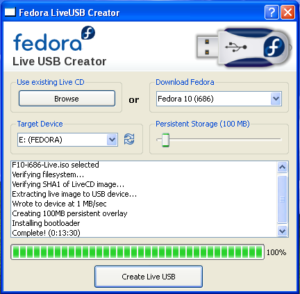
I simply followed the directions over at: Live-USB-Creator and turned my 2GB USB flash drive into a portable Fedora Install Device.

I am recreating the process on my FC-12 box so if you are using FC 11 your package numbers will be slightly different. Following the instructions, I opened terminal, my favorite console window tool, and swithed user to root the typed the apporopriate install command:

# yum install liveusb-creator

On my computer it needed a couple of additonal dependencies. I pressed Y and let it finish the install I then went to the Menu–>System Tools–>LiveUSB-Creator and authenticated as root, the screen popped up.

liveusb-creator


The process from here was easy I selected the distribution I wanted and let it do it’s thing.  A few mimutes later I had a bootable thumb drive with FC 12 on it ready to go.  I have heard that some people have issues with the download of the image.  The tool does provide an option to select an ISO image from your local drive to install.


Overall this is a great tool.  I reccomend it.

Regards

Russ

Upgraded to Ububtu 9.10 two ways

I just spent some time installing and working with Ubuntu 9.10  I tried the installation two different ways on separate machines. The first attempt was an upgrade from 9.04 on my IBM A31 laptop. I have the IBM docking station and I did the upgrade with the computer docked. That helps to make sure the right drivers are installed. I got the notification of upgrade on screen and clicked through and let the upgrade do its thing. I really appreciate the stability of this upgrade process.  I forgot about it and when I came back a day later it was still waiting for me to finish the install. Usually when you walk away from an install it locks up and you have to start over.  Not this time.  The upgrade finished perfectly and I was pleased with the new look on my laptop.  The entire process took a little over an hour to perform the whole upgrade minus my forgetfulness. One part I really liked is even my Broadcom wireless card was detected and fwcutter properly installed the wireless drivers. One part that still does not work is the two USB ports on the dock.  It will not recognize them and I can’t figure out how to get them to work.  For now I have a little USB hub plugged into the top port on the back of the laptop and that will suffice for my thumb drive.


The second method I tried was a complete wipe and reload of an Ubuntu 8.0 box.  This is a generic PIII 850 mhz machine with 512mb ofriva-tnt2ram and a Riva tnt2 video card in the AGP slot. I call this my legacy box.  It gives most Linux distributions fits and they fail to install or at least the video installs wrong.  I will again share that I was impressed with the installer.  I booted from a cd I created from the downloaded image and the install process went off almost without a hitch.  I did have to swap out the old 52x cdrom drive as it would not read the cd.  That was a hardware issue not Ubuntu’s fault.  The box performs well with a default installation and loads applications surprisingly fast.  I want to take a moment to expand on the speed; performance is above average.  I am able to load applications quickly enough that I do not get impatient. No it is not as fast as my quad dual processor screaming whizz bang development pc but for a PIII it is snappy.


One feature I really like is the Ubuntu Software Center.  This is a great tool and an example of the focus Ubuntu places on the end user experience.


ubuntu_software_center

Here the tool provides a clean GUI that allows the novice user to find and install the applications they need.  What I really like is that the apps are arranged by what they provide and can do for the user.  The novice is not going to know the name of the application nor do they really care, they want to know that the personal finance tool is going to let them keep track of their personal finances and checkbook register.  That is the right way to organize the applications.


Kudos to you Ubuntu team.  This is a slick distro.

WebRuss

Distro leapfrog

As an avid, some would say rabid, Linux user and all around open source advocate, I  like to try out new distributions and see what is new.  I just recently upgraded my Fedora and Ubuntu computers.  I use Fedora 11 on my development box.  I find Fedora has the edge when it comes to balancing the needs of an experienced Linux user who wants command line and GUI. Ubuntu has the advantage with the new user.

I just recently upgraded my laptop that I use for Linux training to Ubuntu 9.10. This old IBM A31 is a rugged workhorse and is perfect for traveling and presenting.  I also use Yugma and Skype on it to teach remote classes. I’m doing my part to save the environment and drive less and hold on-line training.

For some reason people often give me old computer hardware. I guess it has something to do with my socks and sandals approach to life, but I’m not sure.  I do my best to get this hardware into the hands of people that could really benefit from it.  Any computer I give away I wipe clean and install Ubuntu as it has the best configuration for the beginner.  Besides running really well on minimal hardware, their attention to detail for the new user puts them way ahead of anybody else.

Because I’m always looking at the latest Linux advancements, I’ve noticed an interesting trend.  Fedora and Ubuntu are playing feature and refinement leapfrog.  My qualitative findings are based on my experience of upgrading and installing each new iteration of Ubuntu and Fedora and using them.  Fedora 10 was ahead of Ubuntu 8.  Ubuntu 9.04 beat out Fedora 10. My recent upgrade to Fedora 11 exceeded the Ubuntu 9.04 version.  Now Ubuntu 9.10 has a slight edge over Fedora 11.  Looking at the release notes for Fedora 12 I think they will exceed Ubuntu.

This is a good thing  The winner in the game of feature leapfrog is the end user.  With each iteration, the spiral upward towards ease of use and user acceptance gets tighter and tighter.  I predict that future feature sets for both open source and propietary operating systems will start to use Fedora and Ubuntu as the standard by which successful inteface design is measured.

Regards

WebRuss

Converting VB and VB script apps to php

I recently tried a conversion of an old asp website to php. The process went pretty well using the asp2php converter located at http://asp2php.naken.cc/

The problems cropped up in the custom ADODB connection. That really doesn’t work. But no biggie I was able to complete the conversion with not too much effort.

Now here is where it got fun. I started thinking about if I could convert a VB application to php. I’ve written hundreds of VB applications all the way from vb 2.0 to 6.0 (yeah I’m that old) and I know php well enough to convert the application. The process would be much the same. I have an old vb 6 application I am going to convert into a php web app. This should be fun. I will let you know the results soon!

Russ

Evolution and Google Calendar

Evolution now has a Google calendar provider.  This means that I can see my google calendar and add/edit/delete events through Evolution.  This is a great feature and really easy to set up.

Go to File->New->Calendar and the New Calendar dialog will open.

Screenshot-New_Calendar

Select Google from the Type dropdown.  Enter your google username and password.  The default refresh is 30 minutes.  I changed it to 15 minutes becuse I use my calendar for many events.  Using SSL if you travel and are often on unsecured wireless systems.

A little tip* enter your username and password before you attempt to pick which Google calendar you are going to use, especially if you are not going using your default calendar.

The color option is for the color of the items as they appear on your calendar.  This is handy if you have multiple calendars and want to distinguish the items.  I clicked the “Mark as default calendar” option so that any new appointments are by default added to the google calendar.